

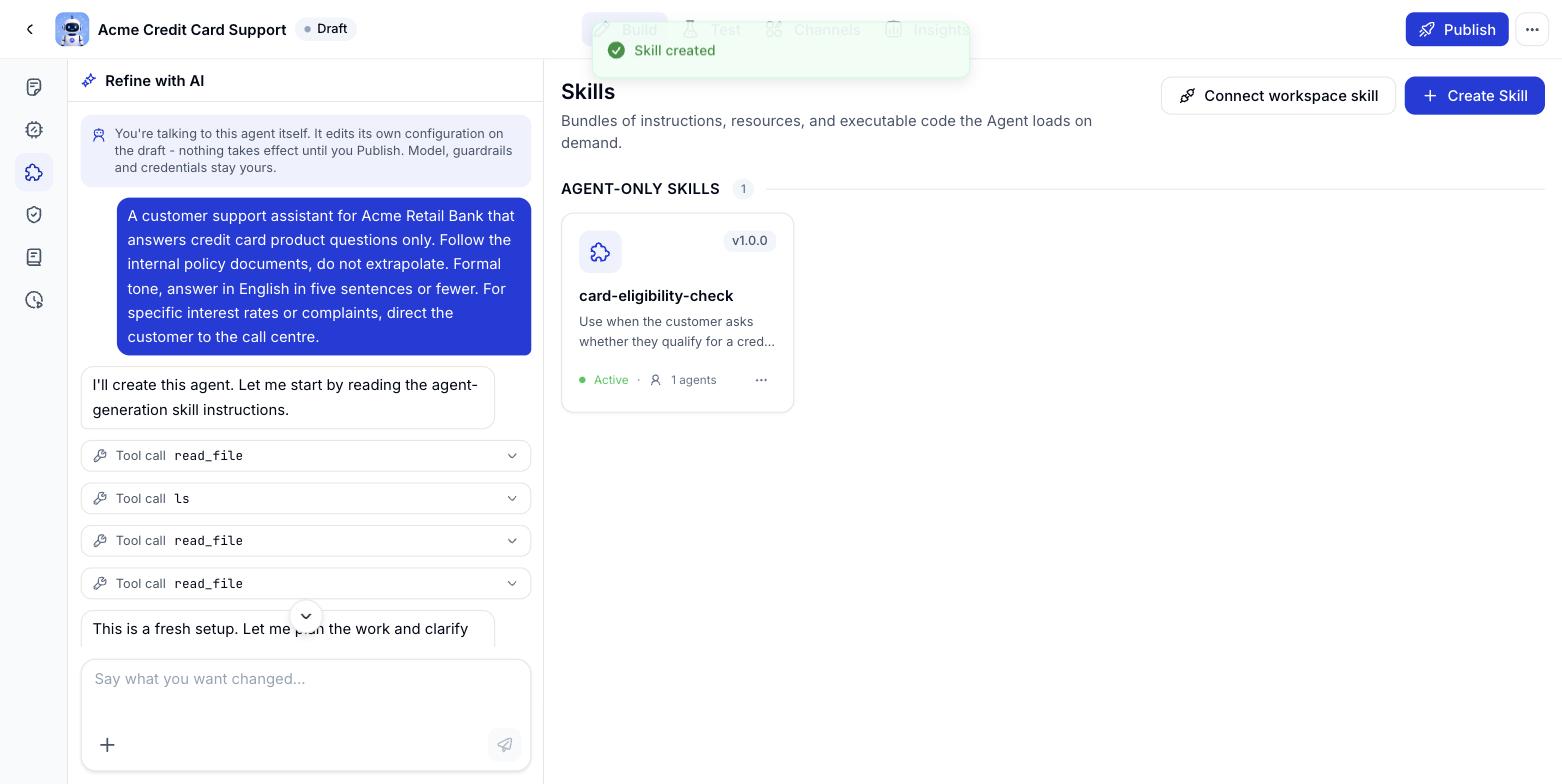
Two kinds of skill
Every skill carries a version number and an on/off state, along with how many Digital Workers are using it.
System skills (built-in)
Not to be confused with Digital Worker capabilities. System skills are document-handling skills (PDF, Word, Excel, PowerPoint) that live in the Skills screen. Digital Worker capabilities are the Digital Worker’s ten platform-level abilities (long-term memory, web search, code execution and so on), switched from Instructions, in the right column, under Advanced settings.
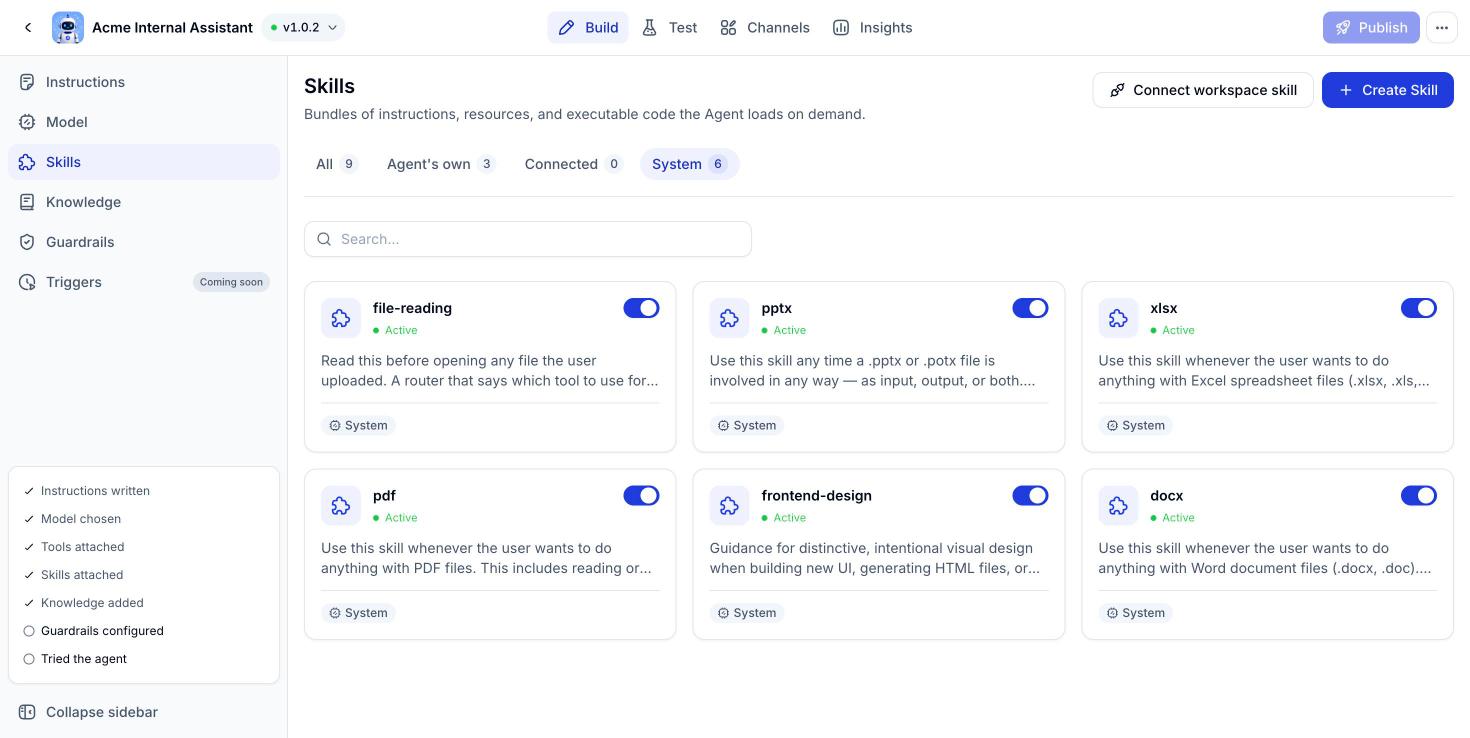
Finding the list
1
Open the Skills screen
Open the Digital Worker and pick Skills in the left column of the Build screen. The Configuration column on the right of the Instructions screen also lists a few built-in capabilities with their switches; click View all to see the whole set.
2
Pick the System tab
The skill list has four tabs: All, Digital Worker’s own, Connected and System. The built-in capabilities sit in the last one, and each card carries a System label.
What each system skill does
Switching one on or off
Each card has a switch in its top right corner. Flip it and you are done, there is nothing else to save. A card that is on reads Active. Switching a capability off means the Digital Worker can no longer call it, whatever the Instructions say. Turnpptx off and the Digital Worker cannot produce a deck; it will say so plainly rather than trying anyway.
Built-in capabilities cannot be deleted, only switched on or off. They also do not take the place of your own skills: a Digital Worker carries its own skills, its workspace skills and the built-in capabilities all at once.
The setting belongs to the version
Flipping a switch changes the Digital Worker’s draft only. The Digital Worker serving real users keeps running the set of capabilities in the published version, until you publish a new one. In other words, every version records its own set of built-in capabilities. Roll back to an earlier version and that version’s set comes back with it.Adding a skill to a Digital Worker
- Create skill - write a new skill for this Digital Worker alone.
- Connect workspace skill - pull in one that already exists in the workspace.
- Ask the assistant - describe the work that keeps repeating, and it proposes a matching skill for you to approve.
The Skills catalogue in Console
The Digital Worker’s Skills screen is split into four tabs, each with a count: All, Digital Worker’s own, Connected and System. The search box underneath filters by name.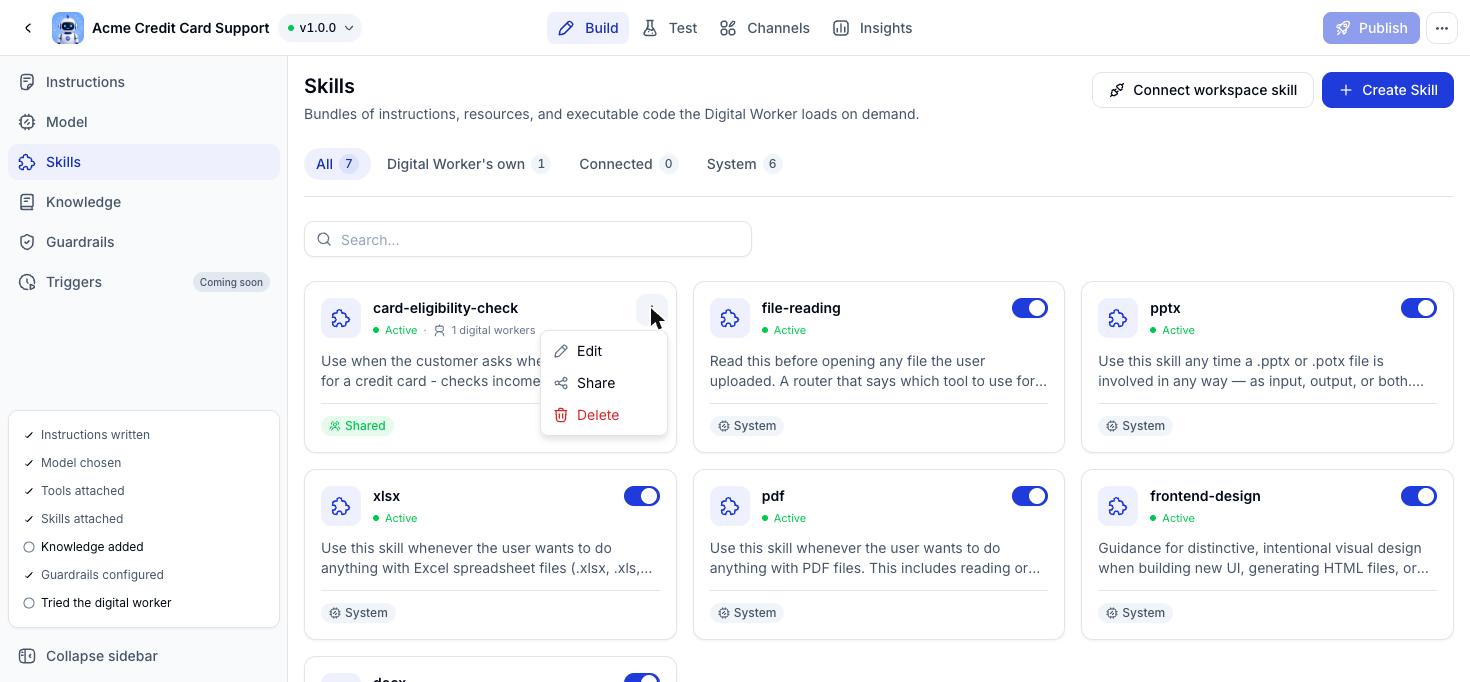
Editing an older version directly
The version selector at the top of the screen lets you open a published version and switch skills on or off, or add one, right there. Guardrails work the same way.Editing, deleting and switching skills off
1
Edit a skill
Click a skill card in the list to reopen the form - change the Name, Description, Skill type or Icon, or review the SKILL.md file tree and everything shipped with it. If other Digital Workers are using the skill, Console warns you first: “This skill is used by N Digital Workers - changes will affect all of them.”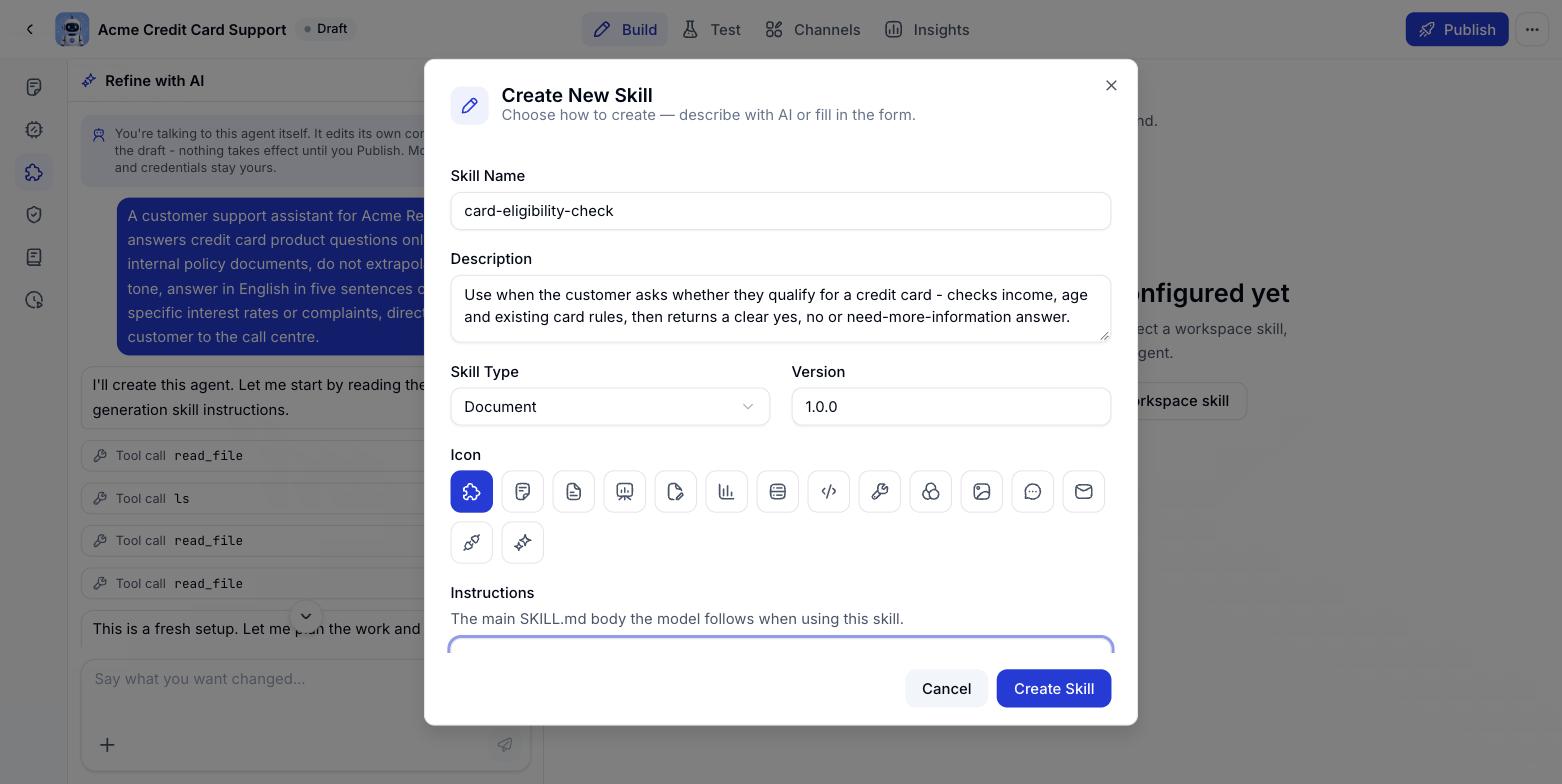
2
Remove a skill from the Digital Worker
Click the bin icon next to the skill name. For a Digital Worker-owned skill, removing it deletes it outright. For a workspace skill, removing it here only unlinks it from this Digital Worker - the original stays in the workspace and other Digital Workers carry on using it.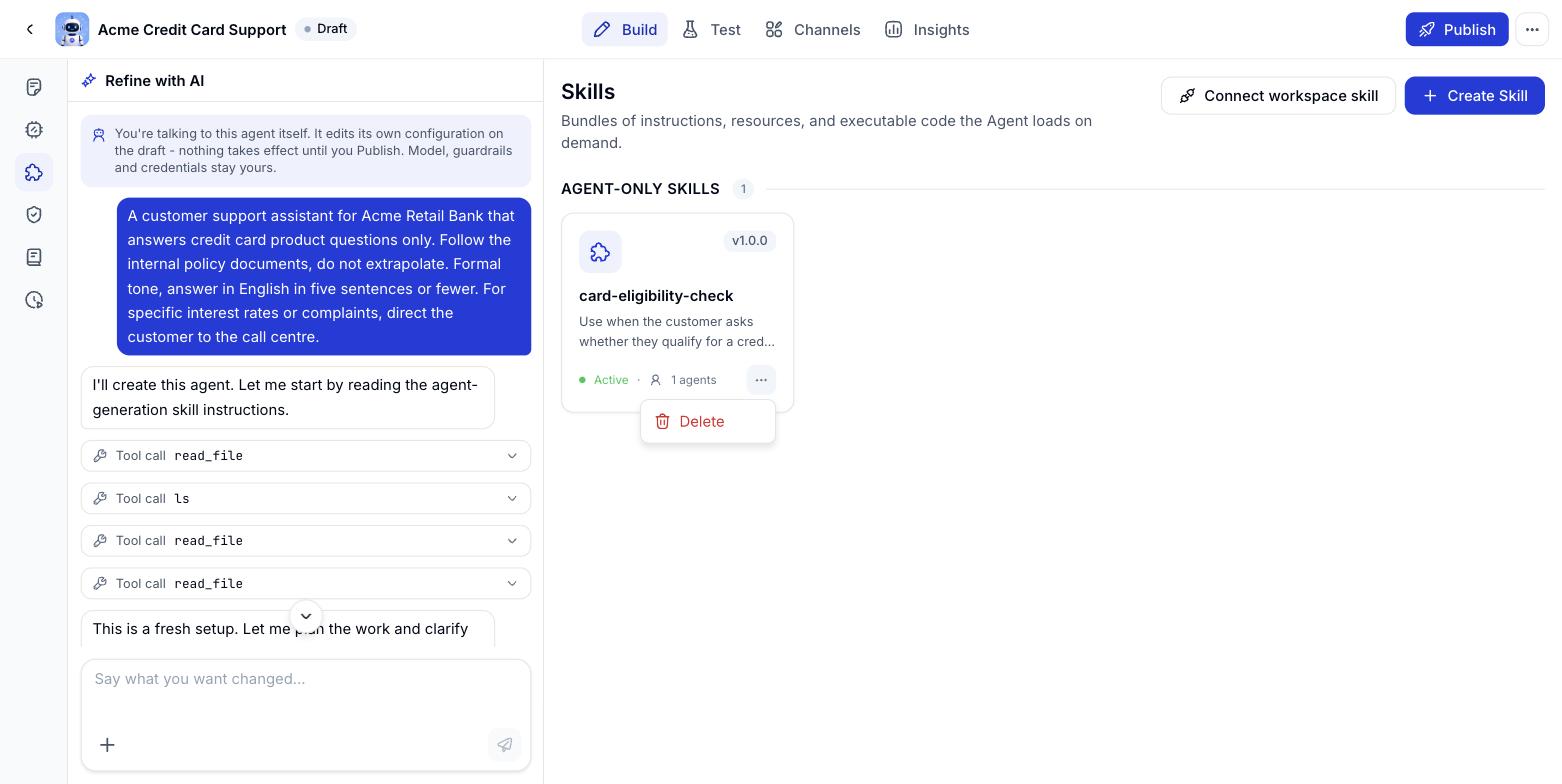
3
Switch a skill on or off
Workspace skills only. Go to Resources > Skills, find the skill and flip the Enabled switch off. Switching it off makes it unavailable to EVERY Digital Worker that has it attached, not just the one you are looking at - use it when you want to pause a skill without throwing away its configuration.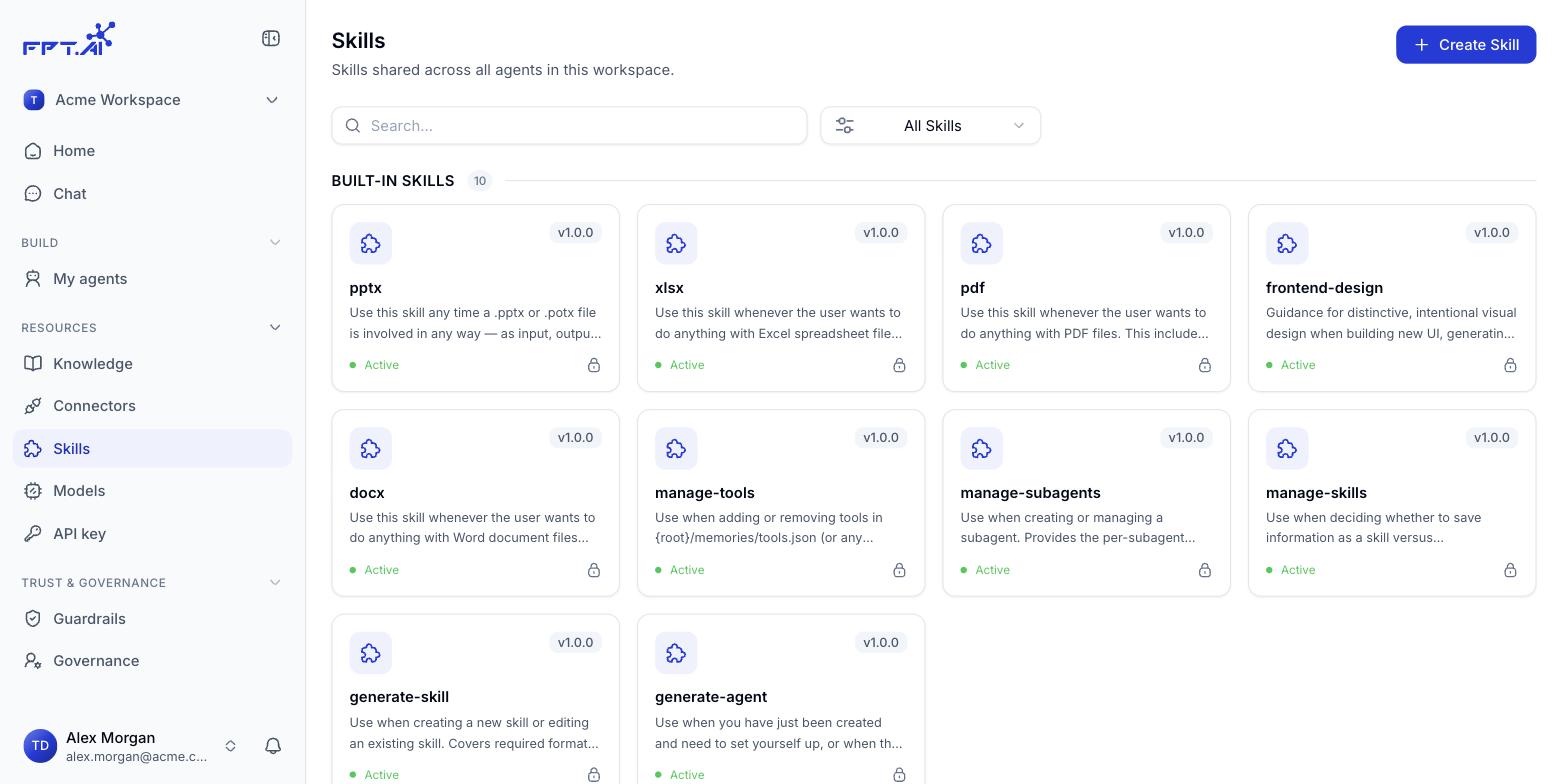
Digital Worker-owned skills - the ones created inline while building a Digital Worker - have no on/off switch. They can only be edited or deleted outright.
Uploading a skill from a file
Instead of writing one out in the form, you can upload a skill prepared elsewhere - handy when it was authored outside Console, shared between teams or kept in git. Console accepts three formats: .md, .zip and .skill (a.skill file is really just a zip with a different extension).
.md - instructions only
Use this when the skill is plain text guidance with nothing attached. The file has to open with a YAML block between two--- lines:
SKILL.md
Everything below the YAML block is the Markdown guidance itself - what the Digital Worker reads and follows once the skill fires.
.zip / .skill - a skill with resources
When a skill needs reference material, runnable code or template files, package it all into a zip. The only rule the system enforces: there must be aSKILL.md at the root of the package. How you arrange the rest is up to you, though the convention below helps the Digital Worker find its way:
SKILL.md, with buttons to view the contents and download the package.
A package keeps every file type
When you upload a .zip or .skill package, nothing inside is filtered out by format. The Digital Worker can read binary files that travel with the package, so a skill can carry an Excel template, a PDF, an illustration or a sample data file and use them while it runs.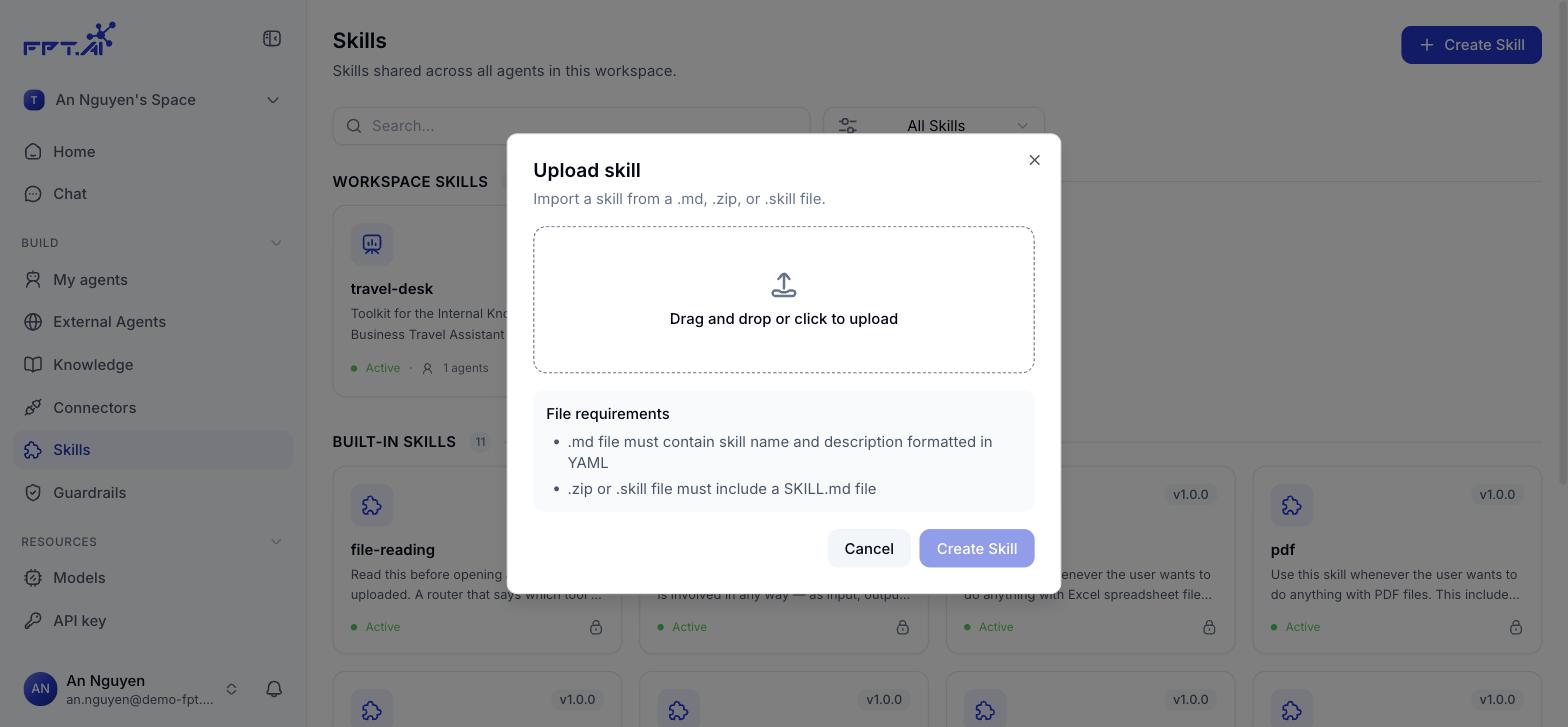
.skill is just a zip with a different extension, so both formats are packaged exactly the same way.
Why split it up instead of putting everything in SKILL.md
The Digital Worker does not load the whole package into context on every run. It reads in three tiers:1
Read the description
The description line is always in context. The Digital Worker uses it to decide whether the current request needs this skill at all.
2
Load SKILL.md
Once the skill fires, the full set of instructions in SKILL.md is loaded.
3
Open attached files on demand
Files under references/, scripts/ and assets/ are only read or run when SKILL.md points at them.
SKILL.md short - the procedure, the stopping conditions and the paths to the detail - and push the long material into references/.
Example: a debt reconciliation package
At the end of every month, accounting has to reconcile bank statements against the debt tracker on SharePoint and produce a report for the department head. The process is fixed, but it runs to many steps and leans on a long table of matching rules. Packaged up:
When an accountant types “reconcile August debt”, the Digital Worker recognises it from the
description, loads SKILL.md, runs reconcile.py, opens matching-rules.md only when it hits a mismatch, then builds the report from report-template.html.
Keep skill names lowercase and hyphen-separated -
email-triage, debt-reconciliation - and matching the root folder inside the zip. Names with spaces or accented characters tend to break when the Digital Worker calls the skill.A skill is worth splitting out when it has a clear procedure and gets used repeatedly - summarising a recurring report, say, or triaging incoming email. Something you do once is tidier left in the Instructions.