

Before it is published, the Digital Worker only runs in your own test screen. Publishing is what puts it in front of real users, through FPT AI EOS Workspace or through external channels.
Opening the publish dialog
1
Open the Digital Worker and go to the Digital Worker builder tab
In the top right corner, click Publish.
2
Review the version details
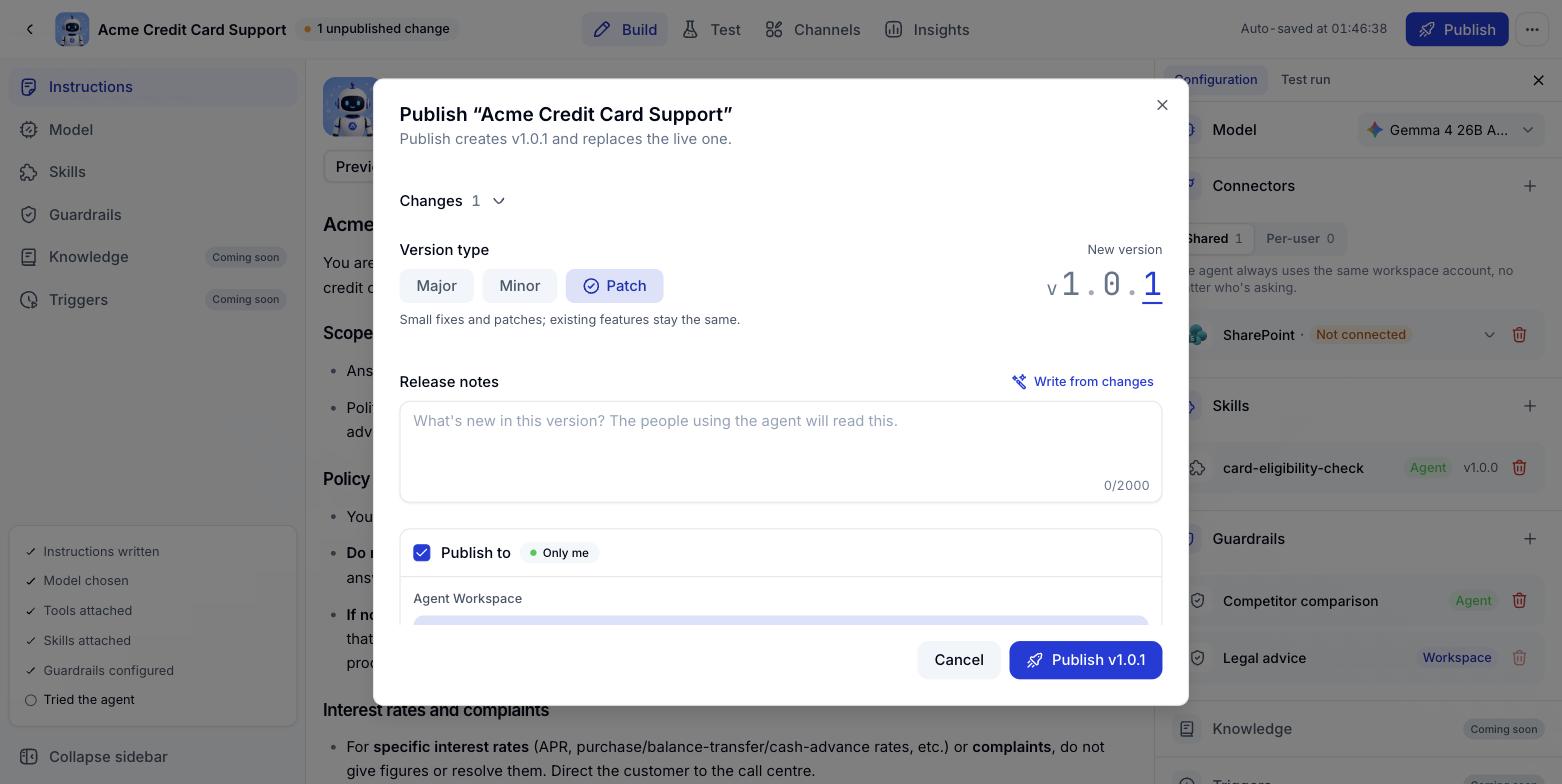
The dialog shows the number of changes, the version number and where the Digital Worker will serve.
3
Click Publish to finish
The Digital Worker is packaged into a fixed version. That version never changes again, even as you carry on editing the Digital Worker.
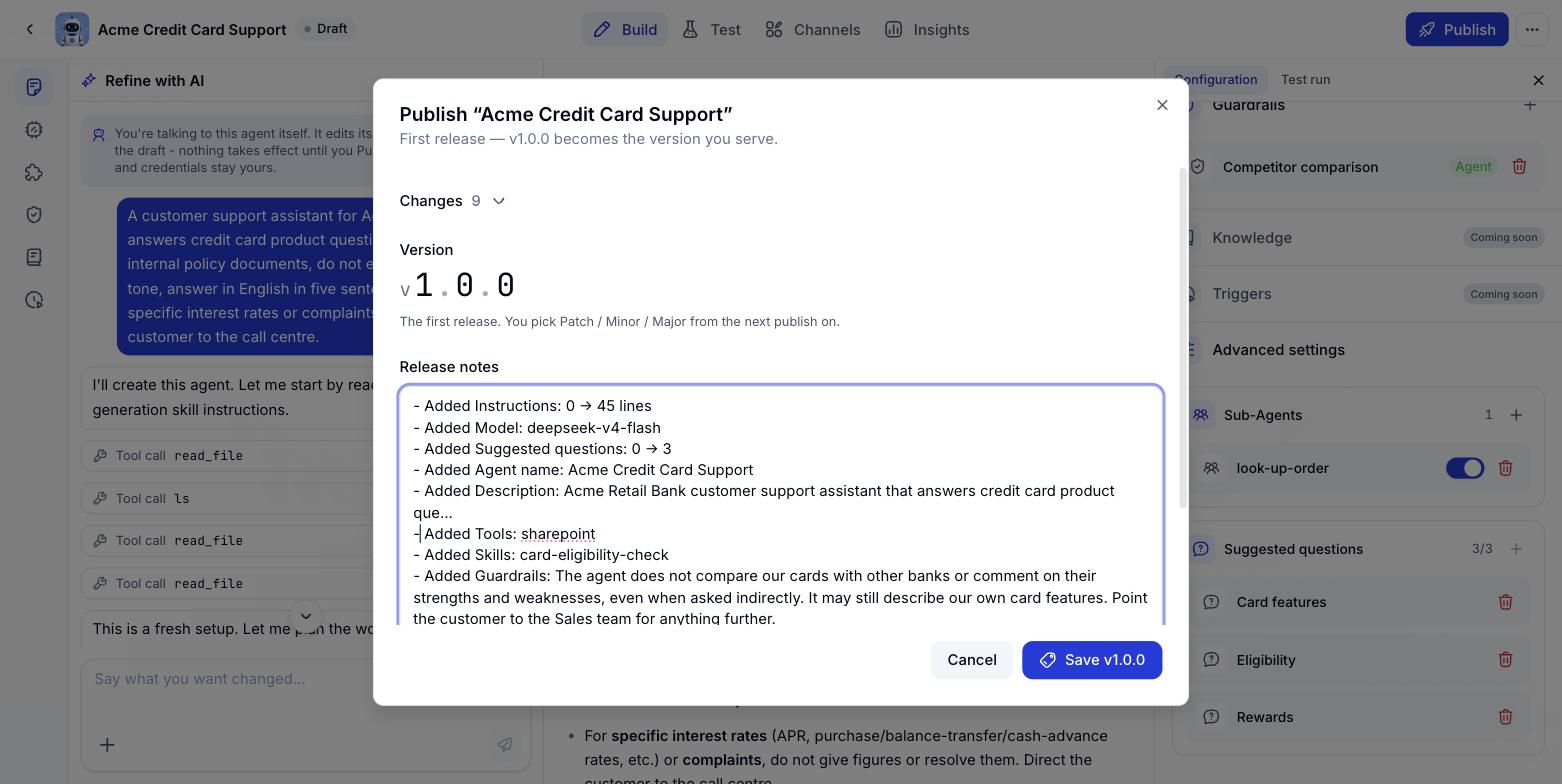
What is in the dialog
Changes
Changes lists everything that has moved since the previous version: Instructions, Model, Skills, Connections, Guardrails, sub-agents and so on. Click a heading to expand it for detail. The number beside it tells you how many changes are being packaged into this version.Version number
The first publish is always v1.0.0. From the second onwards, you pick the increment:Release notes
The notes box takes up to 2,000 characters. This is what the Digital Worker’s users read, so keep it short and answer “what is new in this version”.Publish to
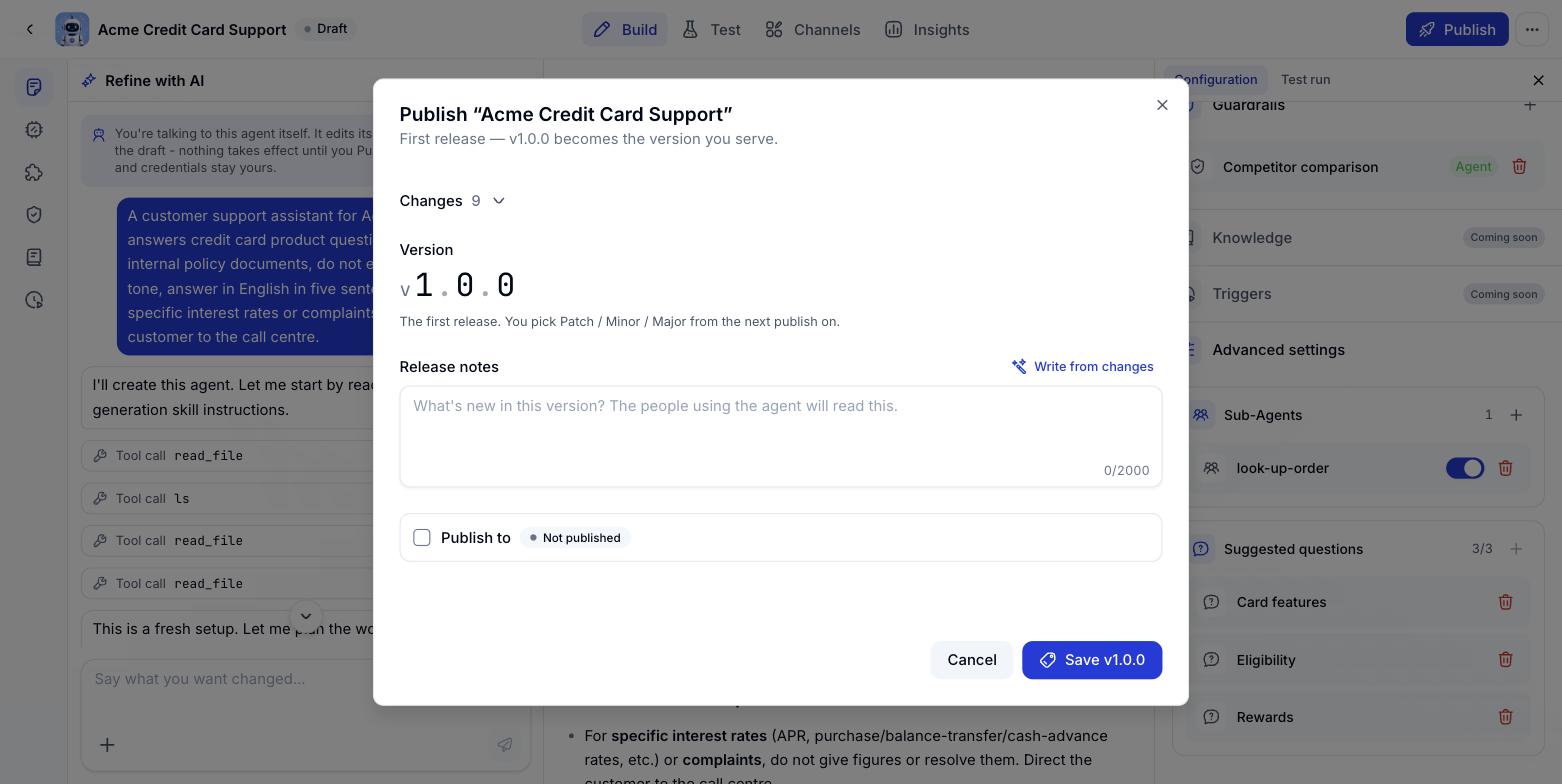
Tick Publish to to expand the section where you choose where the Digital Worker serves. When a Digital Worker has never been published, the badge beside it reads Not published.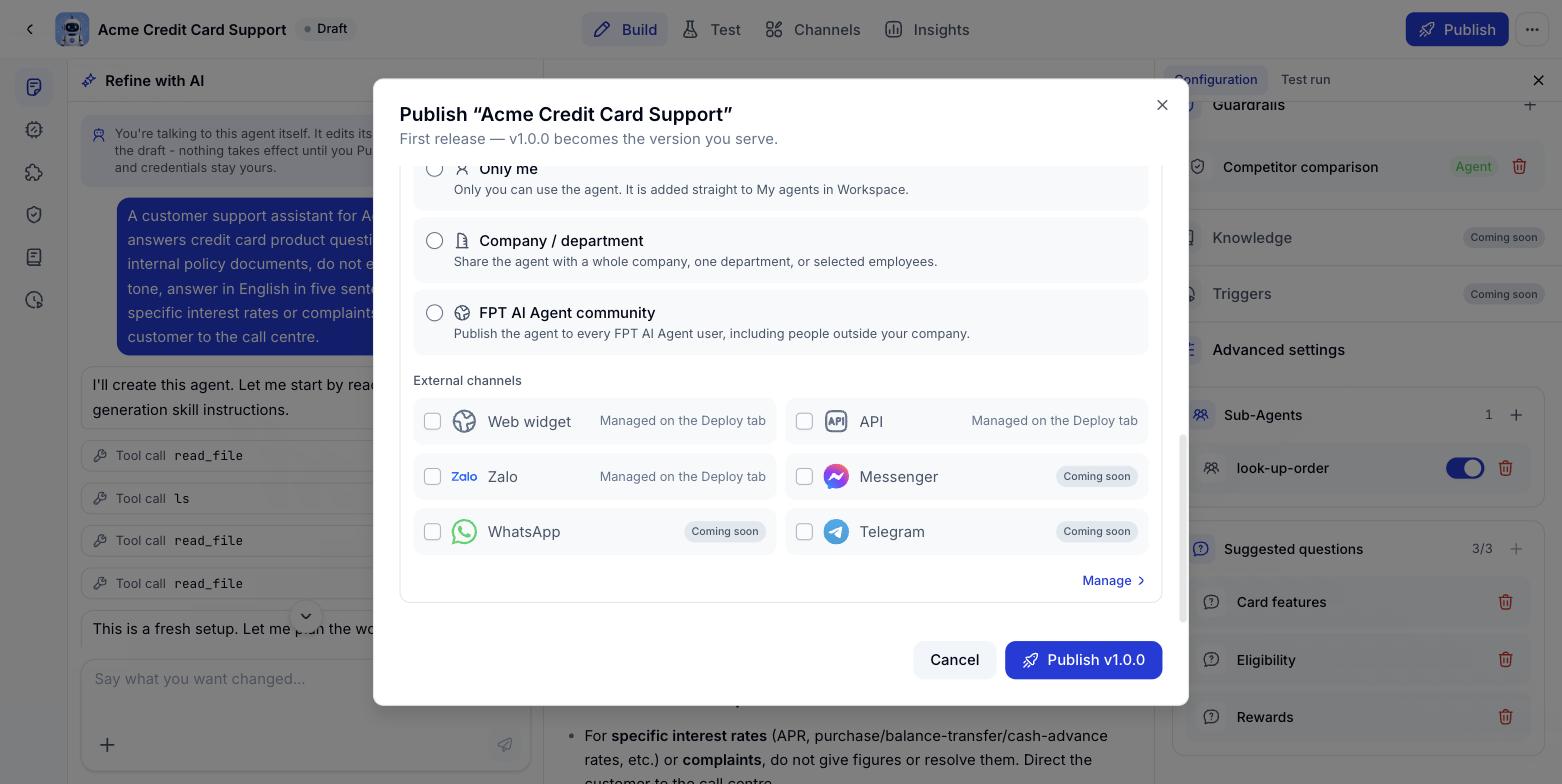
Publishing to FPT AI EOS Workspace
FPT AI EOS Workspace is where internal users chat with the Digital Worker. Pick one of three scopes.Only me
Only you can use the Digital Worker. It goes straight into My Digital Workers in the Workspace. Use this while the Digital Worker is still being finished, or when it serves work that is only yours.Company / department
Share the Digital Worker with a whole company, a department, or a selected group of people. Choosing this scope opens an organisation tree:1
Use the search box
Type a company, department or person into Search companies, departments or people.
2
Tick at the level you want
Tick at company level to share with the whole company. Tick at department level to share with that department only. The number beside each row is how many people it covers.
3
Expand to pick individuals
Click the arrow on a department to list its people and tick them one by one.
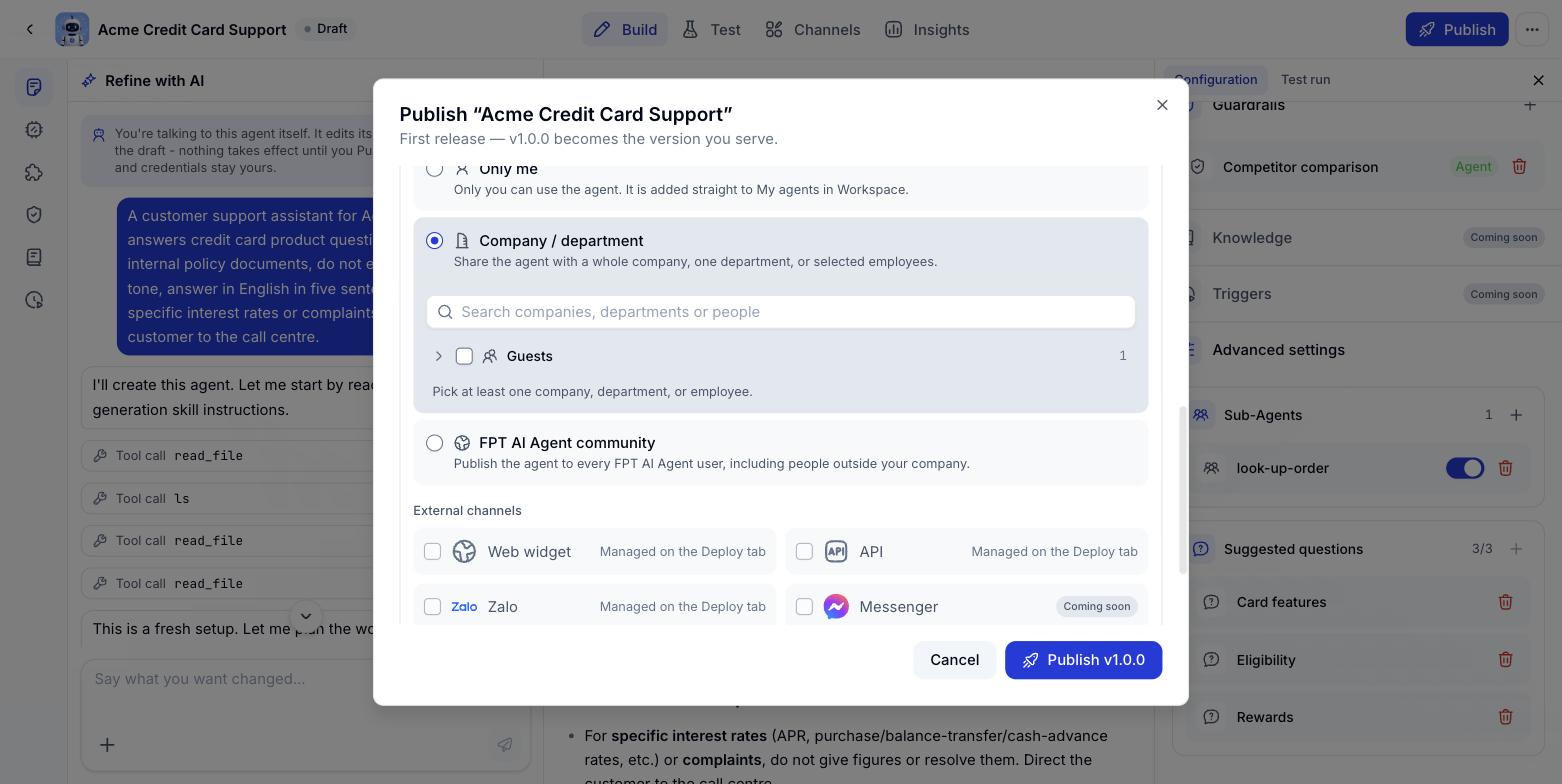
You can combine choices in a single publish - a whole department plus a few people from another, for example.
cộng đồng FPT AI EOS
Publishes the Digital Worker to every FPT AI EOS user, including people outside your company.Publishing to external channels
The External channels section lists the channels outside Workspace. Tick a channel and the version you are publishing will serve there.Channels available now
Web widget
A floating chat window embedded in your website. Configured on the Channels tab.
API
Call the Digital Worker directly from your own systems. Configured on the Channels tab.
Zalo
An Official Account answering customers automatically. Configured on the Channels tab.
Channels coming soon
The three below appear under Not available yet so you can see what is on the roadmap. They cannot be configured yet.Messenger
A Facebook page answering customers through the Digital Worker.
A WhatsApp Business number answering customers through the Digital Worker.
Telegram
A Telegram bot answering customers through the Digital Worker.
The publish dialog only switches channels on and off. Every detailed channel setting lives on the Channels tab. Click Manage in the bottom right to go straight there, or see Managing deployment channels.
Technical integration documentation
Everything above covers enabling and configuring channels inside Console. When your engineering team needs to embed more deeply, see the integration set:Live Chat channel
Embed code, widget customisation, share links and the Visitor API for teams building their own interface.
Mobile SDK
Bringing the chat window into Android and iOS apps.
API integration
Webhooks, HMAC signing, callbacks, reading conversation history and API keys.
Technical appendix
Error code tables, system limits and the pre-production checklist.
Publishing the first version
Publishing a later version
1
Reopen the publish dialog
Click Publish in the top right of the Digital Worker builder tab.
2
Choose the version increment
Pick Patch, Minor or Major according to the size of the change.
3
Write the release notes
Type them yourself, or click Write from changes and edit what comes back.
4
Check where it serves
Review the FPT AI EOS Workspace scope and which external channels are ticked.
5
Click Publish
The new version is created. Earlier versions are kept and can be put back into service.
After publishing
Managing deployment channels
See which channels are running, which version serves on each, and switch versions when you need to.
Live Chat channel
Embedding the Digital Worker in your website: domain whitelisting, share links and widget customisation.
Zalo channel
Connect an Official Account so the Digital Worker answers Zalo messages automatically.
Version history
Every published version is kept, along with its release notes.